Required Software: Photoshop (this should work with anything V. 6 or higher)
Difficulty Level: Easy
Part 1
First things first. Extracting an Image. Skip this stage if you just want to edit the whol image.
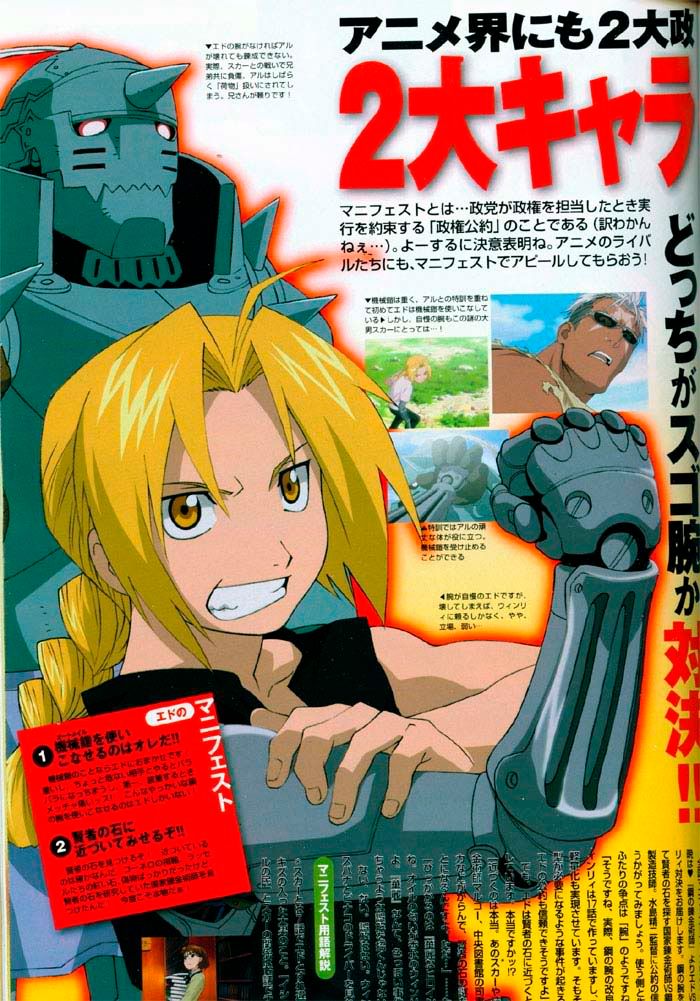
Step one: find an image. For this, I'm using a picture of Edward.

Step Two:
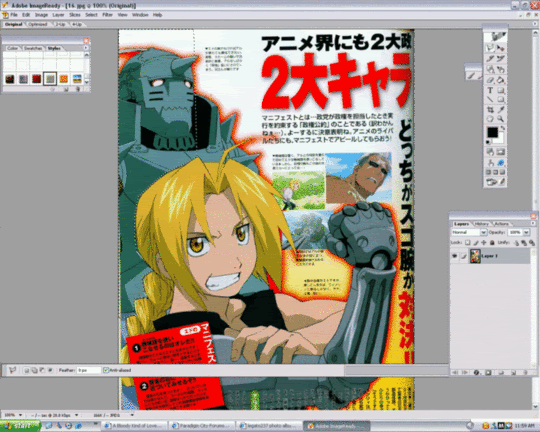
Click on the Image Mask button on your layers. This will add a mask to the layer and allow you to edit without actually affecting the image.

Step three:
Zoom up about 200%. Or at least so you can make a clear look at the outline. Take the polygonal lasso tool and outline the edge of the image. Do it in sections, or it'll be a lot to do.

Step Four:
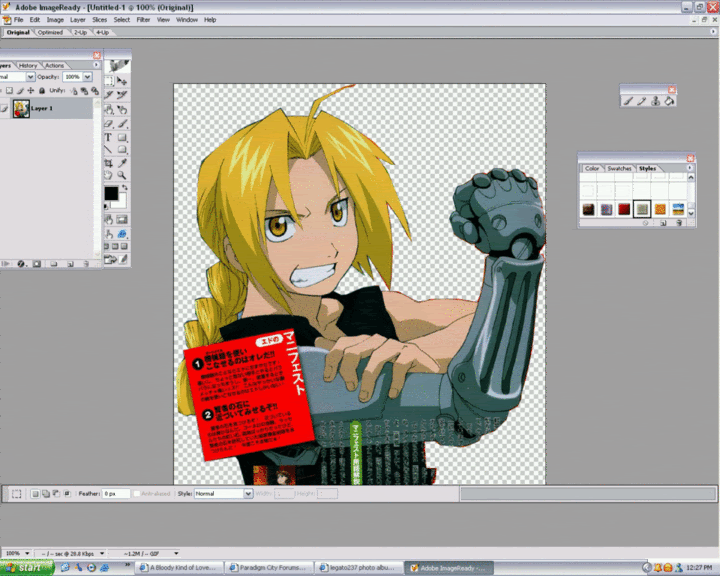
Once you've got the little blinking line, right click in the space and select "fill". Fill it with Black. You'll get something close to this: (or it will fill up with black. Mine goes transparent, either works.)

Step Five:
Do this until you're left with only the image you want to have left. Mine's done sloppy, and I'll show you a neater version that I did a couple nights ago of Kite from .hack. Anyway, once that's done, right click on the layer mask and select "apply layer mask". This will apply the mask and the image will be left.
 Part 2
Step One:
Keep the picture's transparency. Now, take the image and duplicate the layer by dragging the first layer to "New Layer".
Step Two:
Make sure you're on the top later and go to "filter". Go to "Noise" then "median."

Step three:
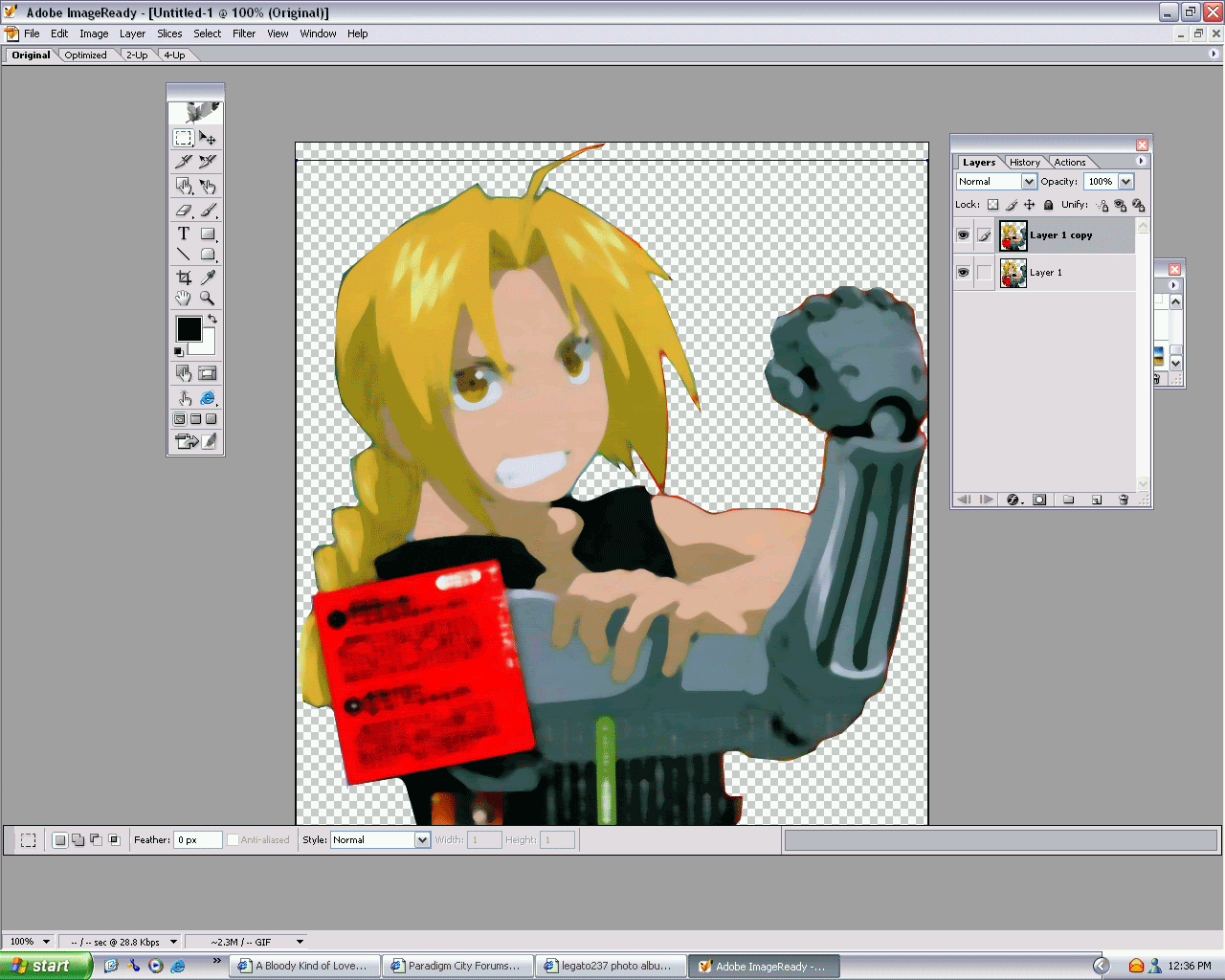
Set the layer blending to either overlay, soft light, or hard light. Whatever you think looks best. Fiddle with other blending options too and see what you get. For this, I'm using the overlay option.

Step four:
If you're satisfied with the image in step three, then skip this. If not, and you still think there's some grain or something, select the original layer (or duplicate it again, and put this layer between the first and the second). Go to Filter>Blur>Smart Blur. You don't have to change any settings, but if you fiddle with it, you might get something better.

now all that's left is to combine the two or three layers together and add effects. Voila! It's done, and your image looks a bit better than before.
Like I said, mine's a bit sloppy, since I took all of five minutes on everything. So yeah, make your extracting a bit better. This image wasn't the greatest either, since there was text all over Ed...



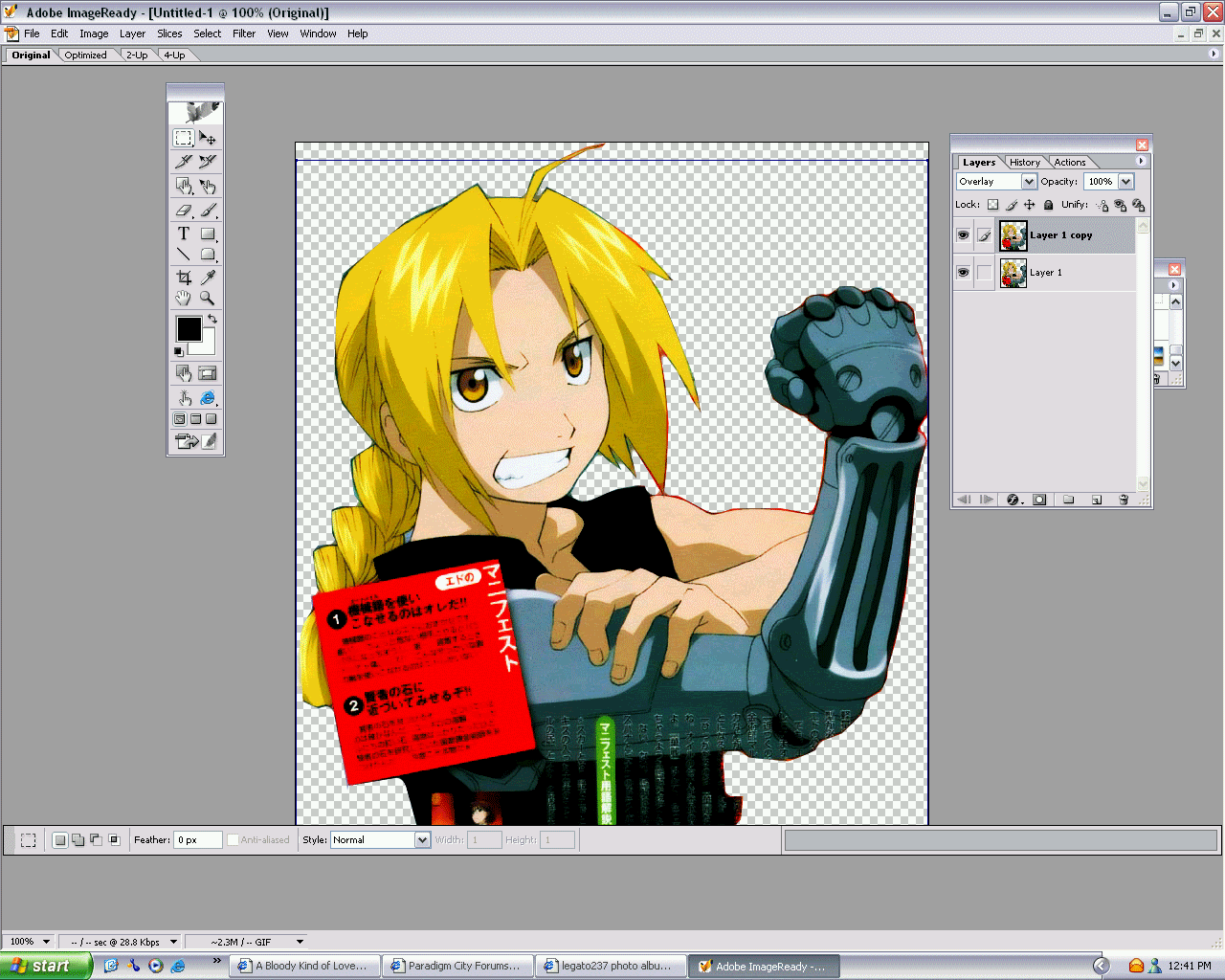

 My version of Photoshop is old too (v. 5.5, yes I'm still in the stone age!
  ) So I don't have Healing Brush. T_T Or I can't find it anyway.


